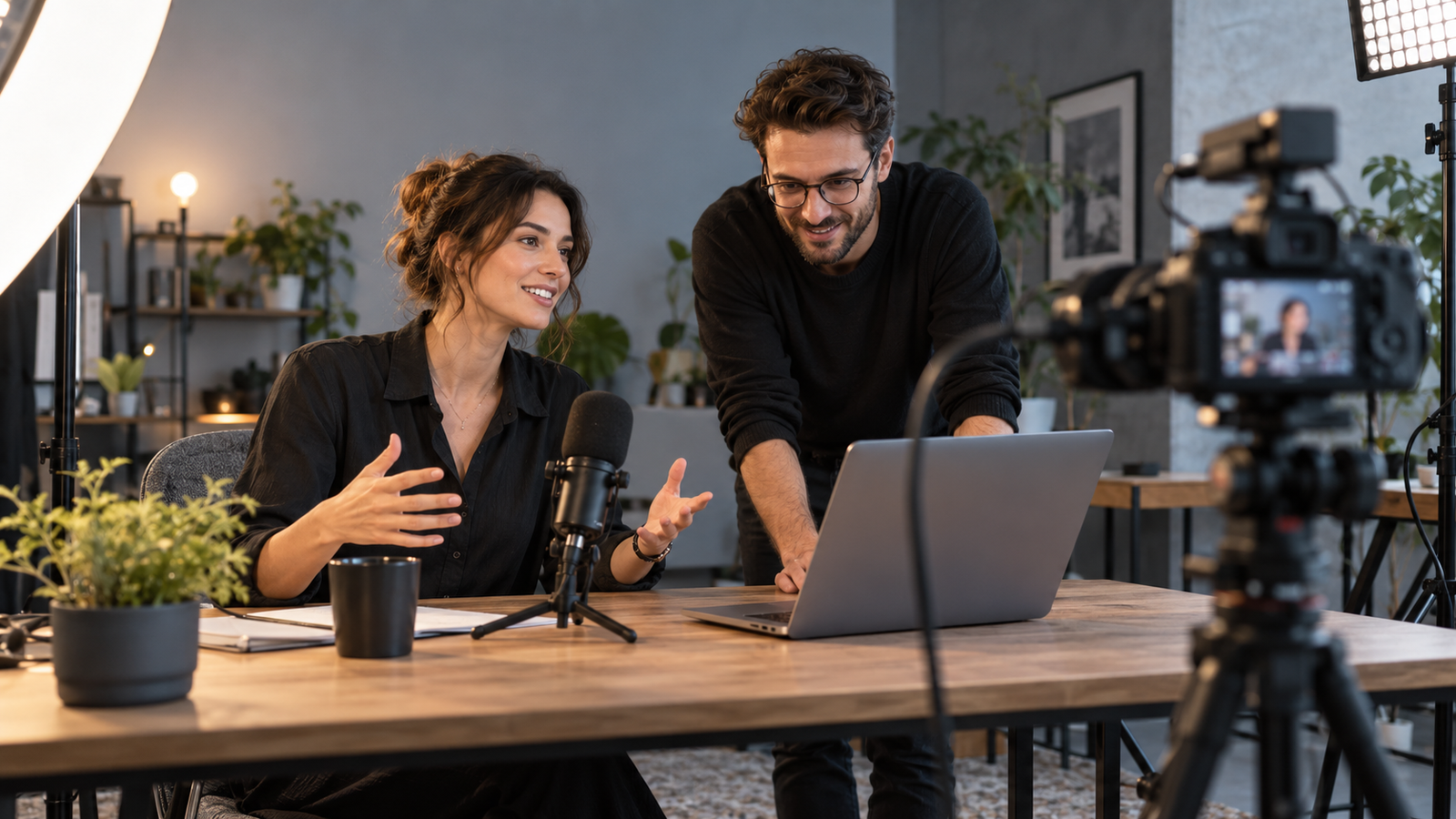
Social Media Live Event Checklist: Plan a Useful Stream and Safe Chat
A live stream needs more than a camera. Plan one goal, test the setup, guide the chat, and make sure viewers know what to do next.
Start with one reason to go live
A live session can answer questions that a static post cannot. Viewers can ask for a demo step, tell the host what is unclear, or hear a specialist explain a change. But going live only because a platform offers the button is not a plan.
Choose one problem the audience cares about. A plant shop might show how to repot a small indoor plant. A software team might walk through a new reporting screen. A community group might answer questions before an event. Each has a clear reason to watch at a set time.
A useful live session needs a short agenda, safe roles, reliable audio, and a plan for questions. This guide shows how a small team can prepare without making the event feel like a television broadcast.
Choose a format that fits the audience
A question-and-answer session works when viewers already have questions. A demonstration works when the task is easier to show than to describe. An interview works when a guest has clear knowledge and the host can guide the talk.
Keep the scope narrow. A twenty-minute session on one feature can be more helpful than an hour that tries to cover every product. Tell people what they will learn in the event title and description.
Check which platform your audience actually uses. A business with a helpful YouTube channel may have better reasons to stream there than to open a new account for one event. Do not promise viewers that a tool or chat feature will work on every platform.
Consider time zones if the audience is global. State the event time with a named zone and offer a replay or summary for people who cannot attend.
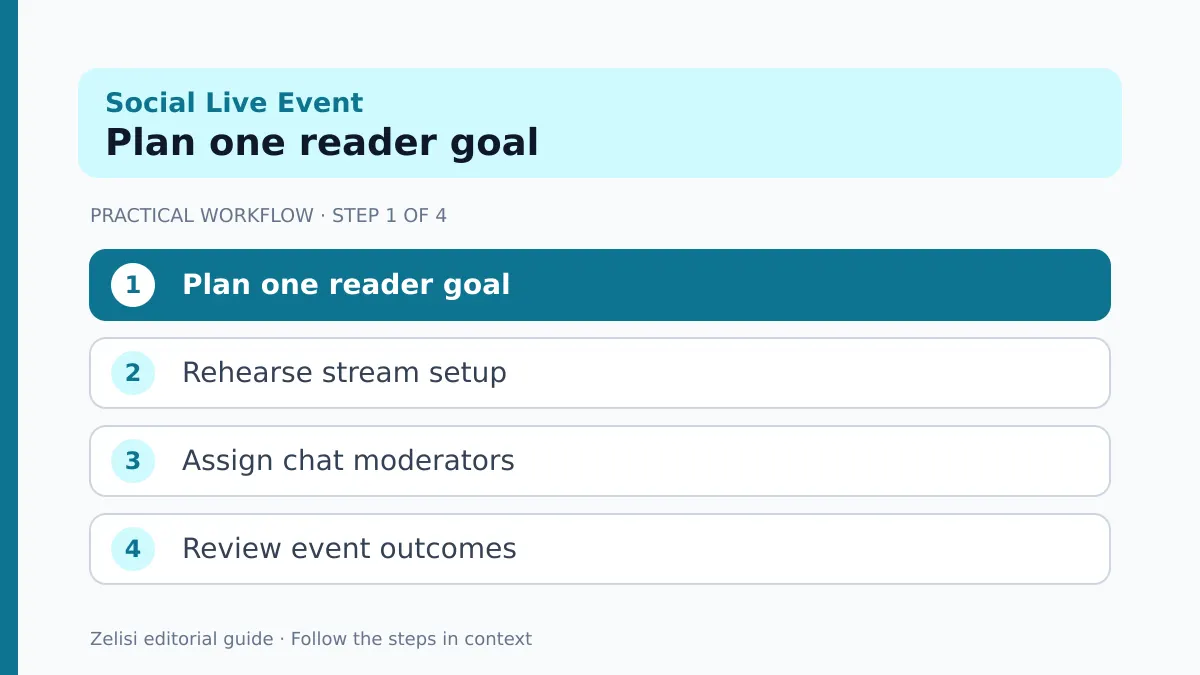
Assign roles before the session
One person should lead the talk. A second person can watch chat, collect questions, and alert the host to problems. If you have a third person, they can handle the stream controls, slides, and backup connection. A solo creator can still work, but should choose a simpler format.
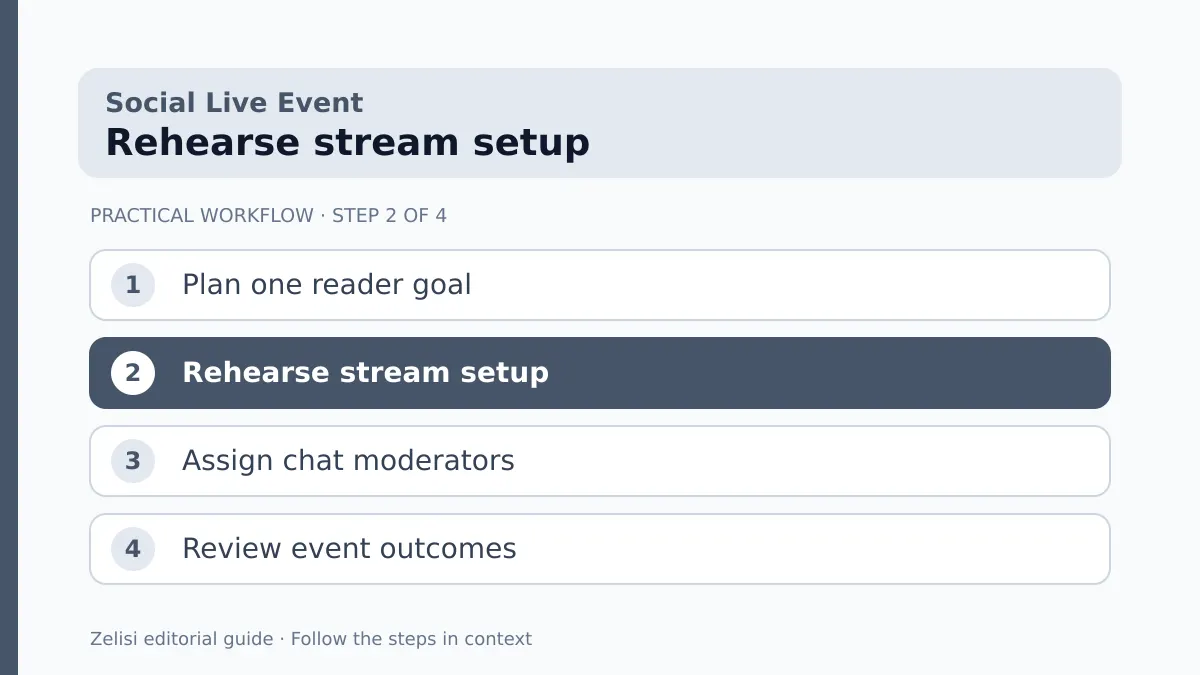
Give each role a clear job. The chat moderator should know which messages to hide, which to answer, and which to pass to the host. The producer should know how to switch to a holding screen if the guest loses connection.
Do not give every helper full account access. Use the platform’s supported permissions and keep sign-in details safe. Test those roles before the event begins.
Write a contact method outside the stream, such as a team chat, so helpers can coordinate without sending private notes into public comments.
Test the technology with the real setup
Tasks for the host and moderator
A quick video call is not the same as a full stream test. Use the same computer, microphone, camera, network, slides, and encoder settings that the real event will use. Check audio first. Viewers may forgive a simple backdrop but struggle with echo or muffled speech.
YouTube’s streaming tips recommend testing the setup. If you use an encoder, follow the platform’s current instructions for connecting the stream. Keep stream keys private.
Run a short private or unlisted test where supported. Watch from a second device on a different connection. Check delay, volume, text size, and whether slides are readable on a phone.
Have a backup plan for a dropped connection. It may be as simple as ending the event safely, posting an update, and sharing a new time. A clear message is better than a silent screen.
Prepare questions without scripting every word
Collect a few likely questions from support staff, comments, or prior events. Put them in a short order: welcome, main demo, common questions, open chat, and closing recap. Keep room for genuine viewer needs.
Do not pretend prewritten questions came from live viewers. The host can say, “People often ask…” and explain the answer. That is honest and still useful.
If a guest joins, agree on the subjects and any topics they cannot discuss. Ask for permission to record and reuse the session. A live talk can reveal personal or confidential details if people are not careful.
Prepare a short reminder for the host to repeat each viewer question before answering. That helps people who join late and those who cannot see the chat.
Set moderation rules that protect the discussion
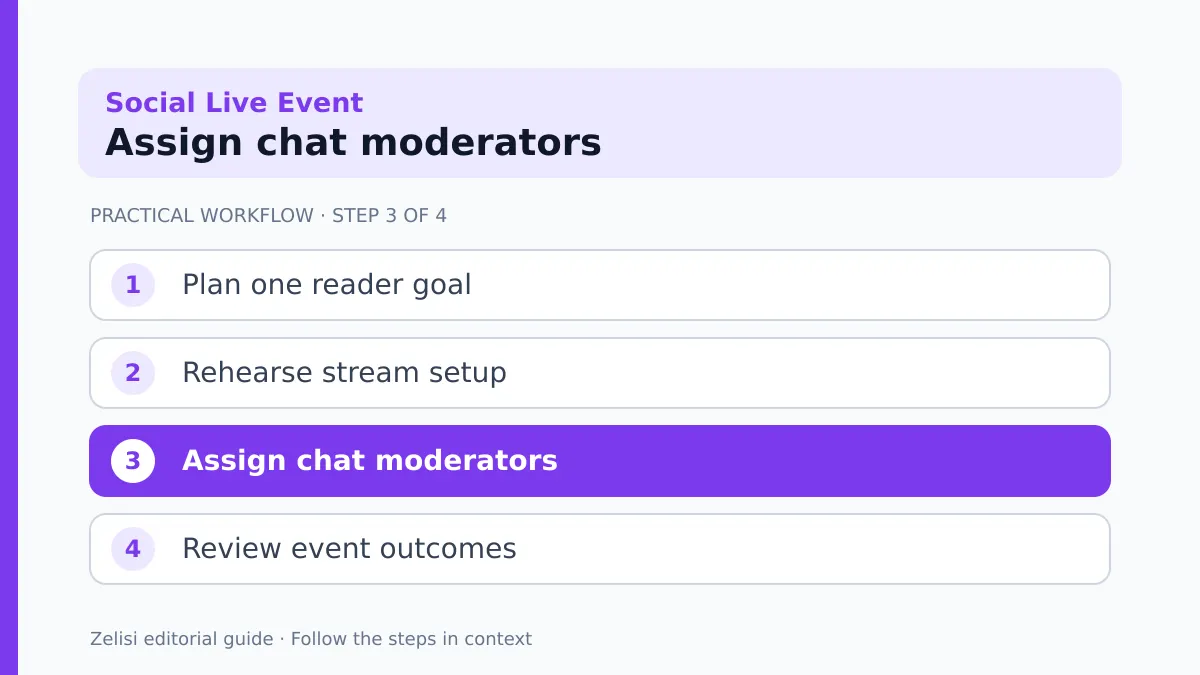
Live chat can be lively and useful, but it can also attract spam, personal attacks, and unsafe links. Decide on basic rules before the first viewer arrives. Explain them in simple language and apply them fairly.
YouTube’s live chat moderation guide describes tools that can help manage messages. Other platforms have different settings. Test the right tools for the chosen service.
A moderator should not remove polite criticism just because it is uncomfortable. The goal is to protect a useful conversation, not to make every comment positive. Personal data, scams, harassment, and repeated spam can be handled under a clear policy.
If the host sees a complex complaint, do not ask the person to share account details in public. Offer a safe support route and return to the event’s main topic.
Plan for viewers who cannot hear or watch live
A live event should not depend only on speech. Check whether the platform supports live captions and how accurate they are. Important names or terms may need extra help, and automated systems can make mistakes.
The W3C guidance on captions explains the role of accurate captions, including for live media. If the event is important or complex, consider a suitable real-time captioning service when practical.
Describe key visual actions aloud. “I am selecting the export button at the top right” helps someone who cannot see the screen well. Keep slide text large enough to read on a phone and avoid fast screen changes.
After the event, a short written summary and a corrected transcript can make the lesson useful to people who missed the stream.
A real example: a software support live
A small team has received many questions about a new project board. It schedules a thirty-minute demo with one host and one moderator. The event page promises three tasks: create a board, invite a teammate, and export a report.
Before the session, the team tests screen sharing and a sample account with no private customer data. The moderator gathers questions and hides spam. The host repeats each question, shows the step, and notes what the product cannot do.
Afterward, the team publishes a short guide with time stamps and corrections to any unclear answer. It does not claim the stream increased sales without evidence. It checks whether support questions about those three tasks change over the next few weeks.
The event becomes both a live service and a reusable help resource.
A practical run-of-show
Tasks for the host and moderator
Keep a one-page plan beside the host. The exact times can change, but a short structure helps the team stay calm.
- Ten minutes before: final sound, connection, and screen checks.
- Opening: name the task, host, and chat rules.
- Main section: show one useful method or answer.
- Questions: group similar requests and state any limits.
- Closing: recap the next action and where the replay will appear.
- Afterward: save notes, check captions, and log follow-ups.
If a question cannot be answered, say that. Promise a follow-up only when someone owns it and can deliver. A truthful “we need to check” is better than a guess that viewers may act on.
Keep the plan flexible enough to respond to the people who show up.
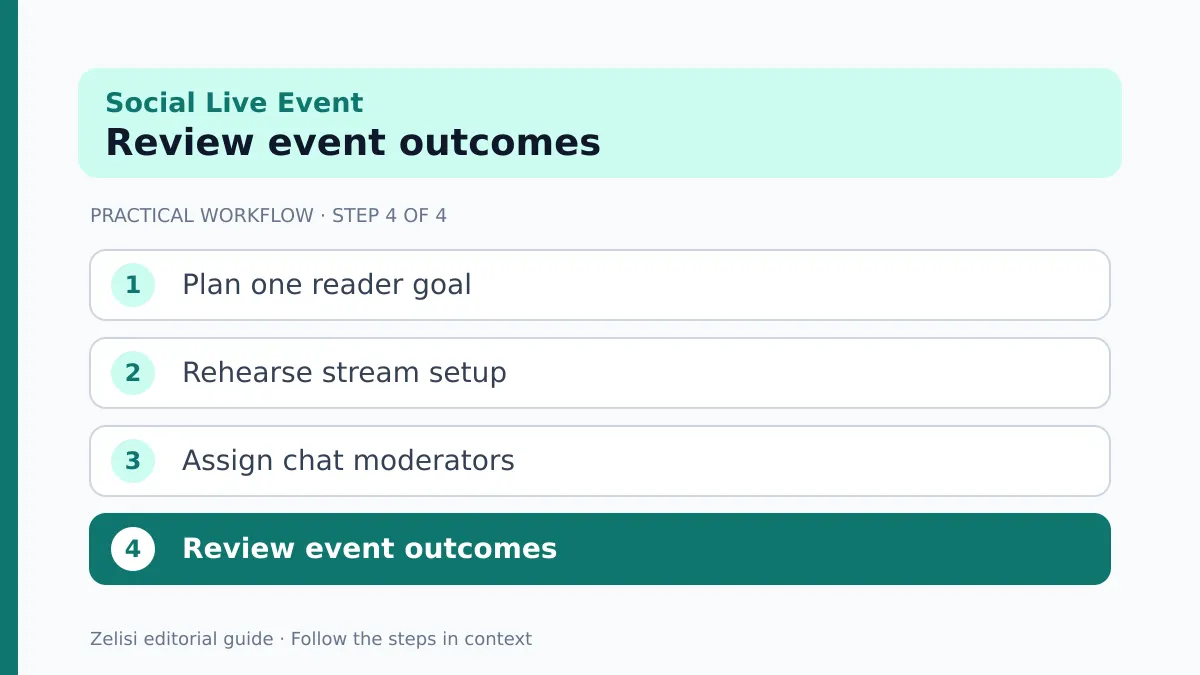
Review the event for useful lessons
View count is one signal, but it is not the only result. Look at the questions people asked, where viewers seemed confused, and whether the replay helps them complete the task. A small live session can be valuable to a narrow audience.
Ask the host and moderator what went wrong: Was the audio weak? Did chat move too fast? Were slides hard to read? Fix one or two issues before the next event. Keep the technical checklist updated.
Do not edit the replay to create a claim the speaker never made. Correct factual errors clearly. If sensitive details appeared by mistake, review the recording before making it public and follow the proper response process.
A social media live event works best when it serves a real question, protects participants, and leaves a useful answer people can return to later.