JavaScript SEO Troubleshooting: Find Content and Rendering Problems
A site can look fine to a person yet hide key text from a search bot. This guide shows how to check what loads, what links work, and where pages fail.
Why a page can look fine but hide its content
A modern website may load a blank shell first and add text after scripts run. A person with a fast browser sees a finished article. A crawler may face more steps before it can find the same text and links. That difference can cause search problems when a script fails, a resource is blocked, or important content arrives too late.
JavaScript is not bad for SEO. Google can render many JavaScript pages. The problem is relying on rendering without checking the result. A site owner should know which content appears in the first HTML response and which needs a browser to build it.
This guide gives a practical test plan for content teams and developers. It focuses on what search engines and users need: readable content, clear links, correct page status, and a stable path to important pages.
Start with one affected page
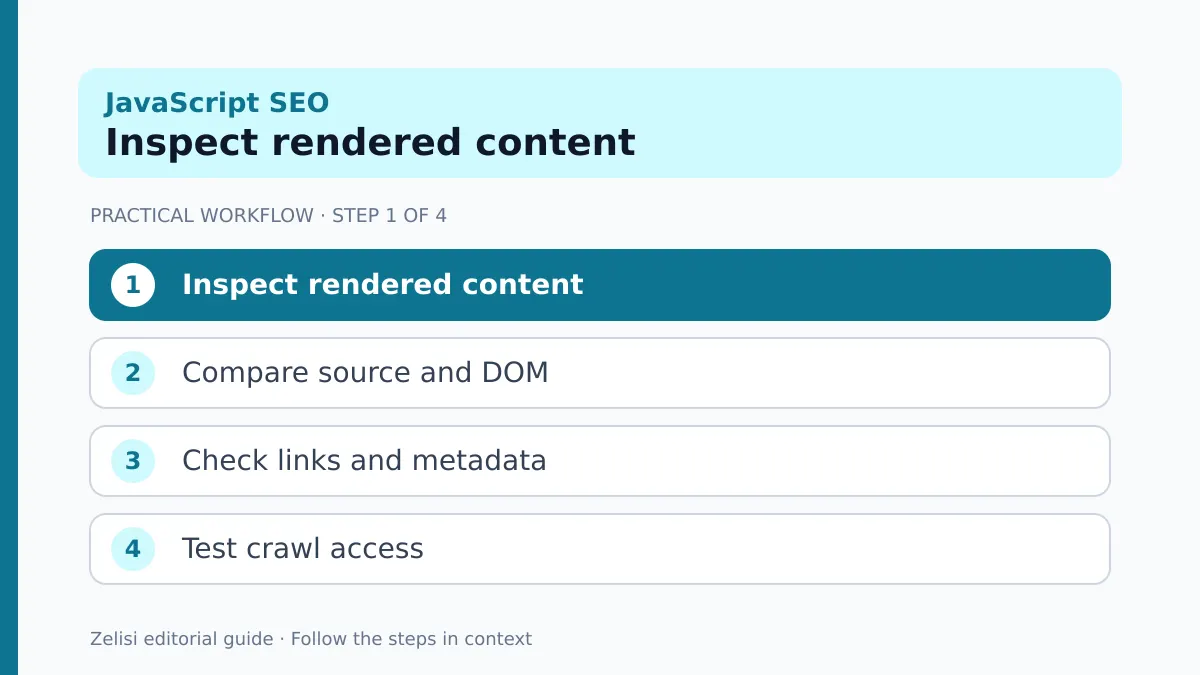
Test the rendered result
Do not begin by rewriting an entire site because a few URLs are missing from search. Pick a page with a clear problem. It may have a title in Search Console but no useful body text in the indexed view, or a category page may fail to expose its item links.
Open the page normally and note the visible content. Then view the raw HTML source. Search for a distinctive line from the article. If it is absent, JavaScript may be responsible for inserting it later. That is a clue, not a final diagnosis.
Next, test the same URL through the Google Search Central JavaScript troubleshooting guide. Its workflow uses URL Inspection or the Rich Results Test to inspect the rendered output and errors.
Compare the raw source, rendered page, and user view. Look for the exact point where the content disappears.
Check that the server sends the right status
A page that does not exist should not return a normal success status and a cheerful error message. Crawlers use HTTP status codes to understand what happened. A 404 or 410 response can describe removed content. A broken page returning 200 may be treated as a soft 404.
On JavaScript sites, an app may show “page not found” after load while the server still sends 200. Discuss this with the developer. The right fix may involve server routing or rendering, not an SEO plugin setting.
Do not redirect every missing URL to the home page. A visitor who asked for an old product deserves a relevant replacement or a clear not-found page. Search engines also need that distinction.
Test the status for normal pages, missing routes, and temporary server errors. The behavior should make sense before any ranking discussion begins.
Make essential links crawlable

A navigation element can look like a link but behave only as a click handler on a button. Google and other crawlers have an easier path when important pages use real HTML links with href attributes.
Open a category page and inspect how it points to the articles below it. Can someone copy the link? Does the address lead to the right page when opened in a new tab? Can a crawler see it in the rendered HTML?
A link to an article should have clear text. “Read our guide to shipping returns” helps both a reader and a crawler more than an icon with no label. Do not hide every route behind a search box or an action that requires a sign-in.
The Google JavaScript SEO basics explains how Google finds links after rendering. Make that discovery as simple as the site design allows.
Keep titles and canonicals stable
A page title tells people what they are opening. A canonical tag identifies a preferred address. JavaScript can change these fields, but late or conflicting changes make debugging harder.
For a product page, the title should match the product shown. If the initial HTML says “Products” and the rendered page says “Blue Travel Bag,” confirm that the final output is the one the search engine receives. Check for two canonical tags that name different URLs.
Be careful with robots directives. Google’s guidance notes that a noindex tag in the initial page may cause rendering to be skipped. A script that tries to remove that noindex later may not get the chance. This can hide a page despite the browser showing it normally.
Set key search signals in a reliable place and test the rendered result. Do not assume an app framework or plugin handles every route correctly.
Look at the content that loads late

Some pages wait for a separate API call to load the article body or product list. If that call fails for crawlers, the page may contain only a heading and spinner. Check whether the API resource is accessible and whether the data appears in the rendered DOM.
A user may also suffer from slow loading. A page that leaves the main answer blank for several seconds can be frustrating even if the crawler eventually sees it. Consider server rendering or static generation for content that rarely changes.
The solution depends on the app. A news page, a private dashboard, and a product catalog have different needs. Do not force every interactive feature into static HTML. Prioritize the content and links that should be public and discoverable.
Keep a simple error state that tells the user what failed and what to do next.
Check images and lazy loading
A lazy-loaded image should appear when a reader reaches it. But an image that depends only on a scroll event or a hidden interaction may not be discovered as expected. The main image should have a real image address and useful alternative text.
Inspect the rendered HTML for image sources. If the page shows a picture in a background layer but no useful description, a content editor may need to add one elsewhere. For a chart, explain the key result in text too.
Compress images to practical sizes so they do not delay the article. Keep width and height information where possible to help reduce layout shifts. Do not place every image at full camera resolution for a small card.
Google’s JavaScript SEO guide includes advice on images and lazy-loaded content. Use that guidance when testing a custom gallery or feed.
A real example: a jobs directory

Imagine a jobs site that displays listings after an API call. Visitors can search jobs, but Search Console shows few listing pages. The team opens a sample URL in a browser and sees a job. Raw HTML contains only an empty root element. The rendered inspection shows an error because a resource was blocked.
The developer fixes access to the required resource and ensures listing links have real href values. The server gives a clear 404 for removed jobs. The editor checks the title and job description in the rendered view.
The team then tests several listing pages, a category, and a removed job. It does not assume that every URL will be indexed at once. It watches for new crawl and indexing data over time.
The lesson is not “JavaScript caused the problem.” The issue was a specific missing resource and weak route handling. Testing found what to change.
A test list for the release team
Test the rendered result
Before a major site update, check a small set of representative routes. Include the home page, article, category, product or listing, and a missing page. Test both desktop and mobile layouts where the scripts differ.
- Confirm HTTP status codes and redirect paths.
- Compare raw HTML with the rendered main content.
- Check titles, canonicals, robots directives, and links.
- Review JavaScript console errors and blocked resources.
- Verify lazy images and useful text alternatives.
- Retest after the release and note the date.
Keep the test record short enough to use for every deployment. A screenshot and a link to the failed resource help developers more than a vague report that “SEO dropped.”
If a change breaks a critical page, roll it back or fix it before adding more features.
What to monitor over time
Use Search Console to spot patterns across affected routes. A fall in indexed pages can have many causes, so compare it with release dates, server errors, site changes, and content quality. Check sample URLs rather than trusting one total count.
Remember that rendering is one stage of search. A page also needs to be found, crawled, and considered useful enough to index. Good technical access does not guarantee a ranking or a traffic gain.
A monthly test of key templates can catch problems before they spread. Ask the content and development teams to share a small list of public pages that must always show their main text and links.
The goal is a website that people can use and search engines can understand, even as the interactive parts grow more complex.