Social Video Caption Workflow: Make Short Clips Clear and Accessible
Captions make short videos useful when sound is off. They also help people who cannot hear the audio. Learn how to write, time, and check them.
Why captions are part of the content
A short video may look clear to the person who made it, yet the key message can vanish when sound is off. Some people cannot hear speech well. Others watch in a shared room or on a train. Captions help more people follow the words and sounds that matter.
A caption workflow belongs in the publishing plan, not at the end when the team is tired. The best process starts with a clean script, then checks the words, timing, and screen layout before the video goes live. That is true for a short tip, a product demo, or a longer interview.
Captions are not the same as a bold text headline placed over a clip. A headline may name the topic. Captions track speech and meaningful sound. Both can appear in a video, but they solve different problems.
Plan for captions while writing the script
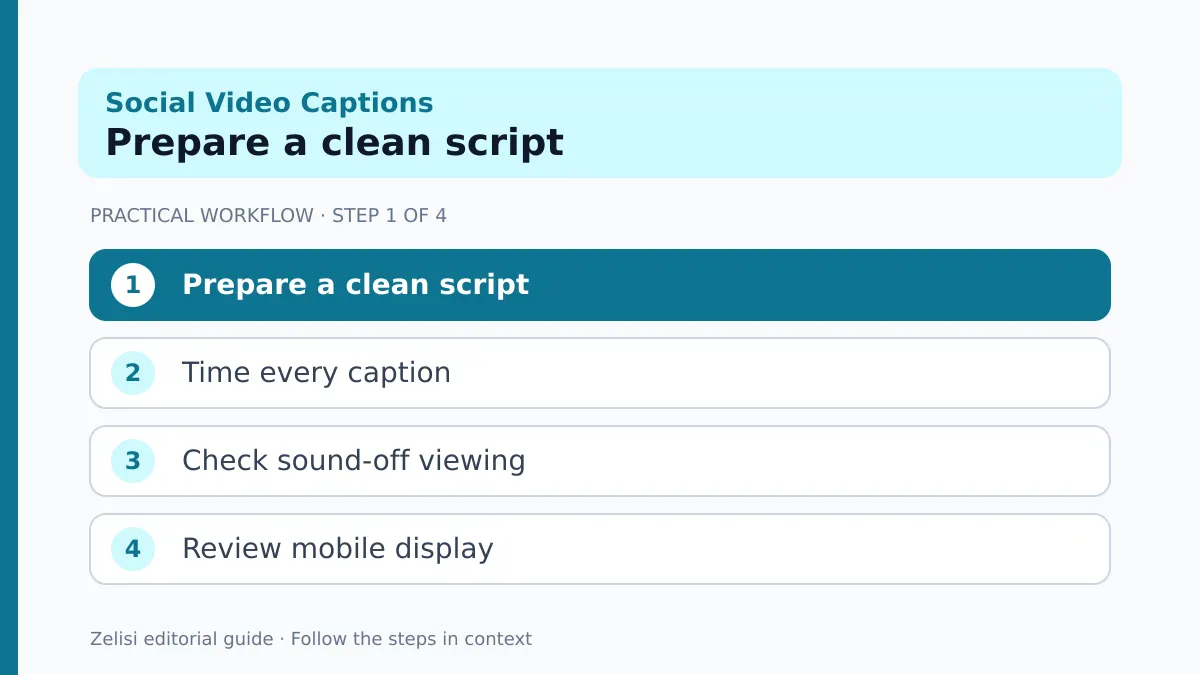
A script can make captions easier to read. Use plain words and keep the main thought in one or two short sentences. If the presenter races through a long line, the caption may need to flash too fast for a reader to follow.
Think about names and terms that speech tools often miss. Product names, street names, and technical words deserve an extra check. Add them to the editor’s script notes. If a guest has a name that is easy to mishear, confirm its spelling before the recording.
Do not remove natural speech only to make subtitles short. The goal is to keep meaning, not turn every speaker into a slogan. Where the presenter pauses, the caption can pause too.
If a video has no speech but relies on on-screen action, plan a text description or a spoken explanation that gives people the important visual information.
Know the difference between open and closed captions
Open captions are built into the picture. Viewers cannot turn them off. Closed captions are a separate track that viewers can enable or disable where the platform supports it. Both can be useful, but they have trade-offs.
Open captions may travel with a clip when it is shared across apps. They can also clash with player controls or become tiny on a small screen. Closed captions can offer more choice and may support language options, but the platform must provide them.
Check what each social network supports before you export. Do not assume the same file will behave the same way everywhere. A video formatted for one app may crop text on another.
For content on your own website, the W3C caption guidance explains why captions need speech and relevant non-speech sound, not just a rough summary.
Edit automatic captions rather than trusting them

Review the words and the final upload
Automatic captions are a helpful starting point. They can also miss names, numbers, accents, or speech over music. A single wrong word can reverse the meaning of a tip. Review the full track while watching the video at normal speed.
YouTube Help explains that automatic captions use speech recognition and that creators can edit them. The platform does not promise perfect results. The editor still owns the quality of the published video.
Check product names and figures first. If the speaker says “fifteen,” do not let the caption say “fifty.” Check negative words too. Missing “not” can turn safe advice into the opposite claim.
When two people speak, make it clear who says what. If a sound matters—such as an alarm in a safety demo—include a short description in the caption track where suitable.
Keep text readable on a phone
A caption may fit well on a large monitor and fail on a phone. Preview the final video at the size people will see it. Keep text away from edges and from areas where the app may place buttons, names, or progress bars.
Aim for a strong contrast between text and the scene behind it. A simple background strip can help when footage shifts from dark to light. Do not put five lines of tiny text on screen just to preserve every word at once.
If a video includes charts or labels, check that captions do not cover them. You may need to move an on-screen graphic, change the crop, or pause the visual so the reader can take in both.
Test portrait and landscape versions when you use both. A caption placement that works for one shape may not work for the other.
Add a transcript for detail and search

A transcript lets someone read a longer interview or find a specific part without playing the whole video. It can also help writers quote the clip accurately later. A good transcript names speakers where that matters and keeps the order of ideas clear.
The W3C transcript guide describes ways to make a text alternative useful. A transcript may need more than spoken words when key actions appear only on screen.
For a product demo, write a line such as “The presenter selects the export button and a download menu opens” if that action carries the lesson. Do not add a long description of every decorative scene.
On a website, place the transcript near the video or link it with a clear label. On a social platform with limited space, you can link to a full accessible guide when the format allows it.
A real example: a one-minute cooking clip
Imagine a cook showing how to test whether a pan is hot enough for a recipe. The first cut has music, a few spoken tips, and a close view of the food. The auto captions miss the exact heat setting. Text at the bottom is partly hidden behind the app’s controls.
The editor checks the script and corrects the heat setting. They move the caption safe area higher, keep the visual step clear, and reduce the music where it masks speech. A short description explains the visual cue the cook points to.
The result is more useful than simply adding a large title that says “Easy dinner.” A reader can follow the actual method, even if they cannot hear the clip. The team also keeps the transcript for a linked recipe page.
This is the kind of small, practical fix that prevents confusion without changing the cook’s style.
Build a simple review role

Assign one person to check captions who did not edit the video. A fresh viewer is more likely to catch a wrong term because they have not heard the same clip twenty times. If you work alone, take a short break and read the captions without sound.
The review can be brief for a short post. Keep a record of the video name, caption language, checker, and status. For a longer session, plan more time. A thirty-minute interview has different needs from a fifteen-second tip.
Do not let the social scheduler remove or replace caption files during export. Check the posted result, not only the editing preview. Some apps process media after upload and the final playback may differ.
If a caption is wrong after publication, correct it through the platform’s tools when possible. If not, consider an updated clip or clear correction based on the impact.
A publishing checklist for short video
Review the words and the final upload
Use this short list before a clip becomes public. The same basic checks work across most platforms, even when the buttons differ.
- Match spoken words, names, and numbers to the captions.
- Add meaningful sound cues and speaker labels where needed.
- Check timing at normal playback speed.
- Preview the full clip on a phone with platform controls visible.
- Test contrast and avoid covering key on-screen action.
- Verify the caption track or burned-in text after upload.
A checklist should not be a box-ticking contest. If viewers cannot read one important instruction, fix that before release. If the clip has no spoken words, focus on whether the visual story has a clear text or audio alternative.
Save a good sample project as a team reference. It helps new editors see how captions should look and behave.
What captions can and cannot prove
Captions can make content easier to access, but they do not promise a rise in views or sales. A video still needs a useful topic, honest facts, and a clear reason to watch. Do not use accessibility as a marketing claim that you have not measured.
You can check feedback from viewers, caption-related errors, and whether people can complete the task shown. Ask someone unfamiliar with the clip to watch it without sound. Can they explain the main steps? This is a useful editorial test, not a full accessibility audit.
Keep improving the process as platform features change. A new auto-caption option may save time, but it still needs a human check. A good social video caption workflow is simple: plan, caption, review, test, and correct when needed.